Showing posts with label TiVo. Show all posts

Friday, April 04, 2014

Mulling a TiVo Roamio (Part 7)

In earlier posts in this Mulling a TiVo Roamio series I compared the costs of buying TiVo boxes with using the combination of Verizon FiOS DVR and two non-DVR settop boxes I now have. The TiVo units I opted for are one Roamio Plus DVR and two Mini extender boxes, along with a TiVo MoCA adapter that will let me network my current TiVo Premiere with the new TiVos.

(I ordered my new TiVo gear online at TiVo.com last Saturday, by the way, and it arrived five days later, on Thursday. I will hook up the Roamio Plus soon, this coming Saturday. The other boxes will be hooked up later.)

My cost comparison involved buying lifetime service on the new TiVo boxes, to go with the lifetime plan I already have on my Premiere. I would thus receive a multi-system discount (MSD) on Roamio Plus lifetime service, I said, such that I would save enough in monthly outlays to cover my initial TiVo expenditures after just 32 months (26 months if I also give up Aereo).

Buying the TiVo combination seemed a really smart move, partly because it has better capabilities than my current Verizon whole-house gear: more tuners for recording more shows at one time; more storage for holding more recorded material; the ability to stream live or recorded shows to my iPad or iPhone.

Verizon FiOS's VMS1100
Quantum TV Media Server


Then yesterday a friend e-mailed me a link to a Gizmodo story about Verizon FiOS's latest settop box, the VMS1100 Quantum TV Media Server. I then went and found this story about the VMS1100 at Endgadget. The VMS1100 is shown on the Verizon website here. An Installation & Operation Manual for the VMS1100 is here.

The VMS1100 Media Server has six tuners and 1 terabyte of storage, as does the Roamio Plus. Impressive.

The Gizmodo story says of the VMS1100 that "you can add a second DVR unit to record up to 12 channels at once and feed 10 TVs at any given time," according to Verizon. So you can have two (or possibly more?) VMS1100s in your FiOS home hookup; the Installation & Operation Manual in fact states that you need a pair of VMS1100s if you want to feed more than five TVs at a time.

I suspect that you can do exactly the same thing with a pair of TiVo Roamio Pluses and the requisite number of Minis, but I do not know that for sure.

Gizmodo says that "it'll cost you $22 a month for the [first VMS1100] box, an extra $32 for the two-DVR, 12-tuner setup, plus $10 to connect additional TVs." Ignoring the double-DVR possibility, the monthly cost for one VMS1100 with two extender boxes seems to be $32 + $10 = $42. Or is that $10 for each additional TV, thus $52 for the three-TV setup?

Gizmodo continues, "Perhaps more excitingly, a second phase of development will see Verizon transcoding its video so that the service also works with other hardware, like Xbox, Roku or iPad." That sounds intriguing ... but as far as use with an iPad is concerned, the Roamio Plus already streams live and recorded TV to TiVo's iPad app.

Hookup diagram from the
VMS1100 Installation & Operation Manual
("Embedded MoCA" refers to support
for MoCA, which I talk about here.)


If a next-generation Verizon Media Server one day comes to use Xbox, Roku, etc. as whole-home extenders, it might be the case that apps situated on those devices would obviate Verizon's own extender set-top boxes (which I believe are called the IPC1100). That would pleasantly lower the consumer's monthly bill for equipment rental.

I note that TiVo does not currently support client apps running on Xbox, Roku, PlayStation, Wii, Apple TV, etc. The clients it now supports reside on handhelds such as the iPad and iPhone. So what Verizon seems to be planning would exceed what is now possible with the TiVo gear I am currently installing.

My earlier posts made the point that buying TiVos along with lifetime service plans saves money in the long run, compared to renting a Verizon multi-room hookup on a month-by-month basis. The big question is how many months the payback period is. I calculated the payback period to be 40 months for one new Roamio Plus and two new Mini boxes, based on Verizon's $40 charge for a three-TV DVR hookup and the $5/month cost of the CableCARD required for the Roamio Plus.

If the cost for a Verizon three-room hookup based on a VMS1100 Media Server exceeds $40, the payback period is concomitantly shorter.

I said in an earlier post that multi-room DVR service from a cable company might be costing you too much money. If you were to invest in TiVo gear, you might save on your overall monthly outlays. You might find that the cost of the TiVo option would be, over time, fully offset by those savings.

Yet there are two big risks. First, the TiVo gear one buys — I'd say the Roamio Plus DVR is more apt to fail than the Mini — may stop working after the limited warranty period of one year is up but before the anticipated payback period is complete.

Second, one's TiVo boxes may become outdated before payback is fully accomplished. One may find that some cable company brings out gear, such as Verizon's next-generation Media Server, that is even better than what's arriving even today, and one is meanwhile stuck with TiVo boxes one hasn't yet "paid for" with month-by-month savings.


Wednesday, April 02, 2014

Mulling a TiVo Roamio (Part 6)

In the earlier posts of my Mulling a TiVo Roamio series, I've been describing how I intend to replace my current Verizon FiOS DVR box and two non-DVR cable boxes with gear I purchase from TiVo. The gear includes a TiVo Roamio Plus DVR ($400), a TiVo Mini ($100), and a TiVo MoCA Network Adapter ($50) for the TiVo Premiere I already own.

TiVo Roamio Plus

As a result of my last post, I've come to think it would be best for me to buy lifetime service for the Roamio Plus and the Mini, instead of paying for TiVo service month by month. I can get lifetime service on my new gear at the following itemized costs:

TiVo Roamio Plus lifetime service, $500
TiVo Mini lifetime service, $150

Total for lifetime service: $650

Total for lifetime service including initial hardware cost: $550 (hardware) + $650 (lifetime service) = $1200

Now comes the crucial cost comparison.

With lifetime service on all my TiVo boxes, my current monthly outlay would be reduced by $40 (present cost of my Verizon boxes) - $5 (Verizon's charge for one extra CableCARD for the Roamio Plus) = $35 per month.

The payoff period for recouping my initial outlay, with lifetime service included, would be $1100 ÷ $35/month = approx. 35 months, or 2 yrs. and 11 mos. That compares with 40 months if I pay for TiVo service month by month.

* * * * *

It gets even better. It looks like I would be eligible for a multi-system discount (MSD) on the Roamio Plus, based on my already having purchased lifetime service on the TiVo Premiere.

The amounts charged for TiVo's lifetime service plans, with and without multi-system discounts, are detailed here, and TiVo's terms of MSD eligibility are here.

TiVo Mini

Note that the TiVo Mini I intend to buy is not eligible for the MSD. But I might reduce my payoff period even further by taking advantage of TiVo's offer of the MSD on the Roamio Plus:

TiVo Roamio Plus lifetime service with MSD, $400
TiVo Mini lifetime service without MSD, $150

Total for lifetime service: $550

Total for lifetime service including initial hardware cost: $550 (hardware) + $550 (lifetime service) = $1100

Time to payoff: $1100 ÷ $35/month = approx. 32 months, or 2 yrs. and 8 mos.

So, taking all the above into consideration, I might reduce my payoff period by 20%, from 40 months to 32 months, if I get lifetime service on the Roamio Plus and on the Mini, and I get the multi-system discount on the Roamio Plus.

* * * * *

Aereo logo
Further note: If I drop Aereo, the service I have which streams/records my local channels, and which I now get for $8 a month, my monthly savings would rise from $35/month to $43/month, and my time to payoff becomes $1100 ÷ $43/month = approx. 26 months, or 2 yrs and 2 mos.

In that scenario, the difference between 40 months and 26 months represents a 35% reduction in the length of my payoff period.

Dropping Aereo makes sense because I expect to be able to use the streaming ability of the Roamio Plus to view local channels on my iPad and my iPhone, just as I do now in Aereo.


Tuesday, April 01, 2014

Mulling a TiVo Roamio (Part 5)

In the first four posts of my Mulling a TiVo Roamio series, I described how I intend to replace my current Verizon FiOS DVR box and two non-DVR boxes with gear I purchase from TiVo.

Verizon FiOS DVR
(Cisco CHS-435)

Specifically, I want to replace the Verizon DVR with a TiVo Roamio Plus, and the two other cable boxes with:


  • A new TiVo Mini, and
  • A 2010-model TiVo Premiere that I already have but use very little


I did a cost analysis in Mulling a TiVo Roamio (Part 4) in which I determined I'd be paying off the $550 cost of the new TiVo hardware in 3 yrs. and 4 mos., given that I'd be spending, on net, $14 a month less than my current $40/month outlay for a three-way multi-room DVR hookup from Verizon.

It worked out that way in large part because I long ago purchased the Premiere along with "lifetime" TiVo service for that unit. What would my scenario look like if I were instead starting from scratch?

Instead of relying on the Premiere (along with the TiVo MoCA network adapter it needs to be able to stream TV content from the Roamio) I would buy a second TiVo Mini (which, like the first, needs no adapter because it has MoCA support built in).

See Mulling a TiVo Roamio (Part 2) for an explanation of what MoCA is and why it is needed.

The hardware costs for this scenario would be:

TiVo Roamio Plus, $400
First TiVo Mini, $100
Second TiVo Mini, $100

Total: $600

The theoretical costs of TiVo service:

For the Roamio Plus, $15 a month
For the first Mini, $6 a month
For the second Mini, $6 a month

Total: $27 a month


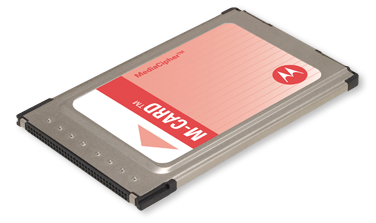
Motorola "M-Card"
CableCARD is
the size of a calling card
Under these assumptions, you'd be paying Verizon $5 a month for the Roamio Plus's required CableCARD. Note that the two Mini units require no CableCARDs.

You'd be dropping the $40/month charge now paid for Verizon's boxes. So the saving in monthly outlays would come to $40 (present cost of Verizon boxes) - $27 (anticipated cost of TiVo service) - $5 (Verizon's charge for one CableCARD) = $8 per month.

At that rate, the $600 up-front cost of TiVo hardware would be offset over the course of ($600 ÷ $8/month in net savings) = 75 months, or six years and three months.

* * * * *

Assume, now, that you'd opt for TiVo "lifetime" service, not monthly service (see this page detailing TiVo's service plans):

For the Roamio Plus, $500
For the first Mini, $150
For the second Mini, $150

Total: $800
Total including cost of hardware: $800 + $600 = $1400

Now your current monthly outlay would be reduced by $40 (present cost of Verizon boxes) - $5 (Verizon's charge for one CableCARD) = $35 per month.

At that rate, the $1400 up-front costs of TiVo hardware and service would be offset over the course of ($600 ÷ $35/month in net savings) = 40 months, or three years and four months. Springing for TiVo lifetime service cuts your payback period nearly in half, from 75 months to 40. After 40 months, you could toss the TiVo boxes in the landfill and still have spent no more money than if you'd stayed with Verizon's gear!

* * * * *

And that's the lesson. Each potential consumer's details will differ, but the general principle here is that multi-room DVR service from a cable company might be costing you too much money. If you were to invest in TiVo gear, you might save on your overall monthly outlays. You might find that the cost of the TiVo option would be, over time, fully offset by those savings.


Monday, March 31, 2014

Mulling a TiVo Roamio (Part 4)

Last time, I discussed a scenario in which I'd hypothetically buy a TiVo Roamio to replace my current Verizon FiOS DVR. In that scheme, I'd also buy a TiVo Mini to replace one of my two non-DVR Verizon boxes, with the Roamio able to send live or recorded TV programs to the Mini for viewing on the associated TV. My third TV would be served by the TiVo Premiere DVR I already have, and I'd relinquish the Verizon box now associated with that TV.

Coaxial TV cable
To get the Roamio to stream live and recorded fare to the TiVo app on my iPad, I'd buy a TiVo Stream external adapter for the Roamio. To each of the TiVos other than the Mini, I'd add TiVo's external MoCa network adapter, since MoCa is what allows these boxes to stream video fare over the coaxial cabling in my home. This cabling is what transmits the Verizon channels I subscribe to to my Verizon boxes, and it would remain in place even if I give up the Verizon boxes.

That scenario would involve $530 in up-front hardware costs. It would save me the $40 I now pay every month to Verizon for my three boxes. I'd instead pay $5 for a new CableCARD for the Roamio (the Premiere already has a $5 CableCARD). The CableCARD would let the Roamio access all my current Verizon channels (though not the Verizon video-on-demand programs I now have access to). I'd also pay $21 a month to TiVo for service to my Roamio and Mini (the Premiere has lifetime service already paid for).

On net, I'd be saving $14 a month ... which over a little more than 37 months would pay for the new TiVo hardware.

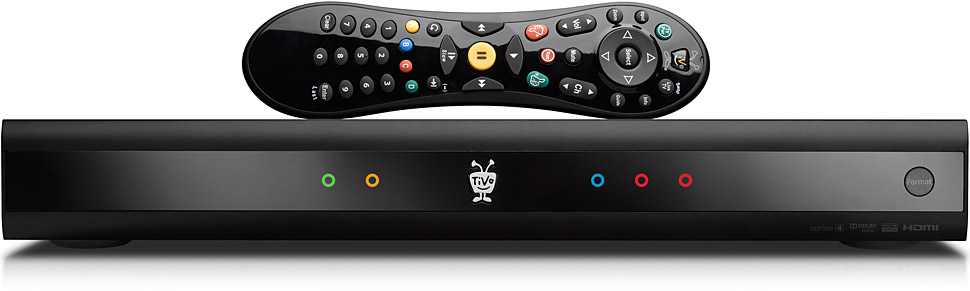
TiVo Roamio Plus DVR ($400)

But now I have an even better scenario in mind. I'd change the Roamio, which costs $200, to a Roamio Plus, at $400. That would let me drop the $130 TiVo Stream unit I'd originally contemplated, as the Roamio Plus has the equivalent streaming functionality built in. It also has built-in MoCA compatibility, so I wouldn't need a $50 MoCA adapter for it. Accordingly, switching to a Roamio Plus would add just $20 to my total hardware cost.

The revised hardware list would be:

TiVo Roamio Plus, $400
TiVo MoCA network adapter for TiVo Premiere, $50
TiVo Mini, $100

Total: $550

The Roamio Plus records up to 150 HD hours using six tuners (for up to six simultaneous recordings) and fully 1 terabyte of storage, compared with 4 tuners/75 HD hours/500 GB. It has, as I say, TiVo Stream functionality and MoCA support built in. It can even stream live and recorded TV to the iPad (or iPhone) TiVo app outside my home, wherever I have a WiFi connection; using the base Roamio and the TiVo Stream dongle, I would first have to download each recording to the iPad before leaving home, if I wanted to view it on the road. Those combined advantages seem to me to justify the extra $20 in up-front costs.


The costs for TiVo monthly service in the Roamio Plus scenario would remain $21 a month. Dividing $550 by my overall monthly savings of $14 a month yields a time-to-hardware-payoff of just under 40 months, or 3 yrs. and 4 mos. It's only three months more than the payoff period in my original scenario.

Next time, I mention some additional factors that bear upon my time-to-hardware-payoff calculations ...


Mulling a TiVo Roamio (Part 3)

In my first post in this series, I stated my desire to have all my TV and video streaming channels, all the time, on all my devices, wherever I go. After a nod toward "cord cutting" — getting rid of my Verizon FiOS TV service entirely, along with the three cable boxes in my home — I said the idea currently presents several hurdles. Then in the second post I took a detour to talk about MoCA, a technology that allows cable-TV companies such as Verizon to stream television programs from one DVR box to another box within a home, using the same coaxial cables that lead from the world outside the home to each box in the home.

TiVo boxes now likewise use MoCA to provide the user with the same multi-room DVR experience. So now I'll go into more detail about my intention to replace my Verizon FiOS DVR and my two associated non-DVR cable boxes — I now have a three-way multi-room setup with Verizon — with TiVo gear.

My first contemplated scenario would center on a $200 TiVo Roamio DVR. The Roamio is the entry-level DVR in the present TiVo lineup.

TiVo Roamio DVR

More pricey options include the Roamio Plus ($400) and the top-of-the-line Roamio Pro ($600).

Opting for a base Roamio, I'd have to augment it with a TiVo Stream unit ($130) if I want to be able to stream Roamio-recorded TV programs to the TiVo app on my iPad.

TiVo MoCA
Network Adapter ($50)
Given that I already have a 2010-model TiVo Premiere in my home, if I want it to be able to play the recordings made on the Roamio into its connected TV, I'd need to make the TiVo Premiere MoCA-capable by connecting it to a TiVo MoCA network adapter ($50).

The MoCA adapter can be looked at on this page at the TiVo.com website. The page "How to connect your TiVo box to your home network, incl. using MoCA" is here. A page illustrating using a MoCA adapter with a TiVo Premiere is here. Using a MoCA adapter with a base Roamio is depicted here.


My third TV also now has a Verizon cable box on it, and currently, that box can play recordings streamed to it from my Verizon DVR. Relinquishing my Verizon DVR would eliminate that convenience, as that third Verizon cable box would be unable to stream recordings from either the Roamio or the Premiere. So, if I want to watch TiVo Roamio or Premiere recordings on my third TV, I would need to replace the third Verizon cable box with a TiVo Mini, for $100.

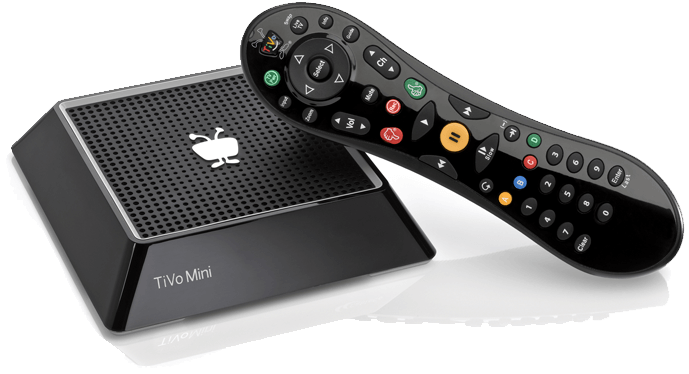
TiVo Mini ($100)

The Mini, lacking a tuner or a hard drive, would not need its own CableCARD. The Mini is intrinsically MoCA-capable, so I would not need a MoCA adapter for it.

So the list of TiVo hardware I'd need would be as follows:

TiVo Roamio, $200
TiVo Stream for the Roamio, $130
TiVo MoCA network adapter for my base TiVo Roamio, $50
TiVo MoCA network adapter for my TiVo Premiere, $50
TiVo Mini, $100

Total: $530


Ongoing TiVo service is also required:

For the Roamio, $15 a month
For the Mini, $6 a month
For the Premiere, $0 a month (I already have purchased lifetime service for the Premiere)

Total: $21 a month


In this scenario, I would give up all three of my Verizon cable boxes, including the DVR box, that now cost me $40 a month to rent, while I would add one additional CableCARD, for the Roamio, for $5 a month. (The Premiere already has its own $5/mo CableCARD.) Net monthly savings on my Verizon bill: $35.

Overall, I would spend $35 - $21 = $14 less than I currently do each month. Dividing the total TiVo hardware cost of $530 by $14 in overall monthly savings, I calculate the TiVo hardware would pay for itself in a little more than 37 months, which is a bit more than three years.

The basic Roamio has a 500GB hard drive that holds up to 75 hours of HD recordings/650 hours of SD recordings, while the Verizon DVR is a Cisco CHS-435 unit with a 160GB drive holding up to 18 hours HD/80 hours SD.

TiVo
iPad app
The Roamio has four tuners and can record up to four shows at a time while playing back a fifth. The Verizon DVR has two tuners and can record two shows while playing back a third. So the TiVo Roamio is by far the more capacious and flexible unit. Plus, adding a TiVo Stream to it would let it stream live or recorded TV to the free TiVo iPad app, a feature the Verizon DVR lacks.

Fair warning: in later posts I'll modify this scenario to show what I consider to be an even better one ...


Mulling a TiVo Roamio (Part 2)

In Mulling a TiVo Roamio (Part 1) I talked about my desire to have all my TV and video streaming channels, all the time, on all my devices, wherever I go. After a nod toward "cord cutting" — getting rid of my Verizon FiOS TV service entirely, along with the three cable boxes in my home — I said the idea currently presents several hurdles.

On the other hand, I could get pretty close to my dream of all my channels, all the time, on all my devices, wherever I go, if I buy some of the latest DVR boxes from TiVo. I said the centerpiece might be a TiVo Roamio DVR. In a later post, I'll talk in detail about that possibility, along with the other gear I'd need. For now, though, I want to mention how I'd tie multiple TiVo units together in a home network, such that recordings made on my Roamio could be viewed on my other TiVo units.

The secret is MoCA.

MoCA hookup in a typical household


Whole-home, box-to-box streaming of TV content depends on MoCA. Formally, MoCA stands for "Multimedia over Coax Alliance." It uses coaxial cables in the home — the same interconnected physical cables that join all of the cable boxes and other devices to the outside cable network — to let a DVR (shown in Bedroom 1) stream recorded TV shows to other boxes and devices in the home.

A Verizon FiOS installation automatically implements MoCA for its users. It may do so in the router that comes with Verizon's Internet service. I am also told it might do so in the Optical Network Terminal module attached to the wall of each customer's home. Truth to tell, I'm not exactly sure where FiOS's MoCA support is actually situated. Wherever it is, it would persist, I believe, if I gave up all of my Verizon cable boxes. (I would just use my existing network of interconnected physical cables to hook up the TiVo boxes I envision buying.)

TiVo Premiere DVR


That's good, because using a TiVo Roamio and my existing TiVo Premiere to shunt TV recordings to/from one another requires the use of MoCA — or else, if not MoCA, interconnected Ethernet cabling, which I do not happen to have installed. In-home video streaming requires more bandwidth than even the fastest WiFi network can provide, which is why either MoCA or Ethernet is needed.

TiVo Mini


If I also purchased a TiVo Mini to act as a conduit to my third TV, it would receive both recorded and live TV fare from the Roamio and from the Premiere via MoCA. If I did not already have a MoCA network in my home, I would have to create one. I would attach a (second) MoCA network adapter to my existing Verizon-provided Actiontec router in order to do so.


But I already have MoCA, courtesy of Verizon, so the second $50 MoCA adapter is unnecessary.

Next, a fleshed-out version of my anticipated hardware purchase ...


Mulling a TiVo Roamio (Part 1)

"TV everywhere" is the buzz-phrase for watching ...

  • all your TV channels
  • all your online streaming video sources, such as Netflix
  • all your video-on-demand content
  • etc.

... on every ...

  • TV
  • desktop computer
  • laptop
  • tablet
  • and smartphone that you own ...

... anywhere in your home, and likewise when you are away from home as well.

I've been thinking I'd like to make all that happen by "cutting the cord": getting rid of my Verizon FiOS cable TV service and the three Verizon cable boxes I now have in my home. (I'd expect to keep my FiOS broadband Internet and landline telephone services, though.)

TV content is increasingly available via online streaming, instead of over traditional copper wire or up-to-date fiber-optic cable physically connected to your house. Online TV streaming à la Netflix does accordingly seem to be the wave of the future. For one thing, it can — in concept at least — feed any video content to any digital device anywhere.

Presently, though, there seem to be several hurdles to my cutting the cord. For instance, there is as yet no way I can stream FOX Sports Channel, part of my current Verizon channel lineup, to my iPad's FOX Sports Go app – as long as I stay with Verizon, that is. The FOX Sports Go app supports other cable TV outfits, but it doesn't support Verizon.

Even so, today's cable TV, whether it arrives at my house over copper wire or fiber-optic wire, seems to get me closer to "TV everywhere" than any other option available right now, including cord cutting.

TiVo Roamio DVR, $200

Which is why I've been looking into the latest DVRs in TiVo's Roamio lineup: the entry-level TiVo Roamio, the TiVo Roamio Plus, and the TiVo Roamio Pro.

TiVo was an early pioneer in digital video recorders. More recently the cable companies have pretty much caught up, DVR-wise. The Verizon DVR I have right now is better than the 2010-model TiVo Premiere I also have in my home, in many of the ways I most care about. For instance, the TiVo Premiere never had the ability to stream video in real time to my three older TiVo units.

(None of those older TiVos still work anyway, by the way, owing to power supply or hard drive issues, and I recently turned them in for recycling at my local Best Buy. And the Premiere itself has had to be replaced once, due to a faulty power supply. I am in fact a bit worried about the poor longevity record of TiVo units.)

But my Verizon DVR can't stream live TV or TV recordings to my iPad, as the Roamios can. (The plain-vanilla $200 Roamio, in contrast with the $400 Plus and $600 Pro, needs to be paired with a $130 TiVo Stream unit to do this.)

True, Verizon's FiOS Mobile iPad app does let me watch certain live cable channels, but only certain ones. Not my local over-the-air channels, not my regional sports networks, and not every national cable channel is included in the list of iPad-available channels. Only a few of the channels that the iPad can stream work outside my home. I want all my channels, all the time, on all my devices, wherever I go.

Going the TiVo route, I could replace my Verizon DVR with a basic Roamio for $200, and add a TiVo Stream to it for $130. The Roamio would use a CableCARD from Verizon to receive the Verizon channels I subscribe to.

(Various posts at the TivoCommunity forum indicate that I can pick up the CableCARD I need at the Verizon Store and install it myself. The correct "M-card" part number is 514517-017-00. I can go to this web page for full instructions on self-installing it. At the very end, the process requires entering an activation code that is specified on a Welcome Letter or Customer Receipt I will have received. If I have already completed the earlier steps given in the full procedure, I can also activate the CableCARD by going to this page.)

I believe that combination of TiVo Roamio and TiVo Stream would be able to stream recordings to my existing TiVo Premiere, which already has a CableCARD, as long as I augment each unit, the Roamio and the Premiere, with a $50 MoCA network adapter from TiVo. If I did all that, I could relinquish the Verizon cable box now serving the TV with the Premiere hooked to it. 

(Optionally, I believe I might also hook a TiVo Stream to the Premiere, if I wanted to record iPad-streamable shows on the Premiere, too. However, that option might be overkill at this point; moreover, I'm not exactly sure whether my gear array would work with two TiVo Streams in it.)

My third TV also now has a Verizon cable box on it, and currently, that box can play recordings streamed from my Verizon DVR. Relinquishing my Verizon DVR would eliminate that convenience, as that third Verizon cable box would be unable to stream recordings from either the Roamio or the Premiere. So, if I want to watch TiVo recordings on my third TV, I would need to replace the third Verizon cable box with a TiVo Mini, for $100. The Mini, lacking a tuner or a hard drive, would not need its own CableCARD.

Note that I would lose access to Verizon's video-on-demand content if I gave up all of my Verizon boxes, as CableCARDs are unable to access Verizon VOD.

Next up, a discussion of MoCA ...


Sunday, March 23, 2014

Live TV Everywhere? (Part 1)

I have a desktop computer, a laptop, an iPad, and an iPhone. Each of the three TVs in my home is hooked to a cable box as part of my Verizon FiOS Triple Play bundle. One of those cable boxes doubles as a DVR that can feed TV recordings to the other two boxes. Two of my TVs connect to Apple TV streaming media players — and one of the TVs has a Roku streaming media player — that feed it video and audio content. And I also have two Sony PlayStation 3's that double as streaming media players.

Trouble is, no one device is capable of letting me view every single channel or content source I have legitimate access to.

In Verizon's Prime HD package, I get a huge number of channels — most of which I never watch. I can look at many of these channels only through one of my Verizon boxes.

Verizon's FiOS Mobile app for the iPad can stream a certain number of those cable channels, but not all of them. For example, I can't stream most sports channels in FiOS Mobile. Adding to the confusion, only a subset of the FiOS Mobile app's live-streaming channels work outside my home.

Meanwhile, just about every device I have can stream Netflix, Amazon Instant Video, Hulu Plus, and/or other streaming sources of content. Oddly, my Verizon cable boxes can't do that. So I have to keep a map in my head of what devices I cannot use for any given channel or streaming content source.

The main problem lies with Verizon. Verizon could in concept let me view any duly authorized cable channel on any of my screens.

It could also put apps — in Verizon-speak, "widgets" — on its cable boxes for Netflix and other streaming content sources. But that's a separate issue, to my mind, since I'm really hoping for a solution that would eliminate the clunky cable box entirely.

OnCue: the original,
pre-Verizon idea
Recent developments suggest that in fact Verizon now envisions something very like what I want. Verizon has just purchased Intel Media, an arm of Intel that had until recently been developing OnCue, a technology designed to stream cable channels over the Internet.

A New York Times discussion of the promising Intel-Verizon deal can be read here. Bloomberg News had this to say about the deal Well before the Verizon deal came along, the New York Times said this of the Intel OnCue initiative.

In my next installment, I'll talk about how I as an aspiring "cord cutter" want to ditch my cable boxes forever.


Monday, May 10, 2010

TiVo Wireless-N Adapter Arrives!

You can now get a wireless-N network adapter for your TiVo, $68.31 at the time of this writing at Amazon.com. I have one on order and will report back later as to how well it works.

Wireless-N connections are nominally much faster than the wireless-G adapters TiVos have supported up to now. I now have one Series3 TiVo and two TiVo HDs. Each TiVo currently uses a wireless-G adapter.

My main interest in speeding things up is that I like to archive HD movies from any of my TiVos to my Mac, via my home wireless network, and then, when the mood strikes, stream one of them out to a TiVo for viewing. My wireless-G connections are too slow to stream HD in real time.

So, too, may be the wireless-N connection. I have made some experiments using wired Ethernet between the Apple AirPort Extreme base station that sits next to my Mac and my Series3 TiVo. I found that even wired-Ethernet speed can be too slow for delivering HD in real time ... and Ethernet is much faster than wireless-N.

But I also found a seeming difference between the Mac-to-TiVo-on-Ethenet transfer speed when I initiated a transfer but chose not to start playing it as it was in progress, as compared with when I chose to watch the video being transferred at the same time as it was being transferred. The latter scenario was much faster, making it seem, pending further experimentation, that the TiVo won't maximize the transfer speed unless the transferred recording is also being played during the process of making the transfer.

Also, there are several ways to do a Mac-to-TiVo transfer. When I made the experiment I just mentioned, I had yet to begin using pyTivoX (incorporating StreamBaby and FFmpeg) as the Mac-to-TiVo software engine on my Mac. I was instead using plain old TiVo Desktop. The particular transfer engine I use on my Mac may make a difference.

Stream remuxing

Another X factor is that copying a recording from a TiVo to a computer causes "remuxing" to take place. The TiVo "remuxes" (i.e., re-multiplexes) the recorded "transport stream" stored on its hard drive into a single MPEG-2 "program stream" that can be stored on a PC or Mac and played there.

I learned here, at the TiVo Community Forum, that:

High-definition recordings are stored on the TiVo’s hard drive as transport streams in a proprietary format. When you download a recording from the TiVo with a web browser (or TiVo Desktop), the TiVo remuxes the recorded streams stored on the hard drive into a single MPG file that can be played on a PC or Mac. This on-the-fly remuxing does not have any effect on quality, but it does cut throughput by 50-70% compared to MRV between two TiVos

When transferring recordings between two TivoHD DVRs, throughput is about twice as fast (20-24Mbps typical), because recorded files are transferred just as they are stored on the hard drive.

In a book I have, Charles Poynton’s Digital Video and HDTV, the author indicates that an MPEG-2 “transport stream” (TS) is comprised of a bunch of relatively small packets and is designed for “transmission of multiple programs on relatively error-prone media.” (That seems to describe to a T the transmission of cable TV to a TiVo.) “Multiple programs” would encompass, I’d assume, the video portion and the audio portion of a single cablecast. In a TS there are multiple independent “program clock references” that synchronize the separate programs. This would seem to be how video and audio are kept in sync.

In an MPEG-2 “program stream” (PS), which is designed for storage on relatively error-free media such as a computer hard drive, there are also packets, but they can be large: up to 64 KB in length, where a TS packet is only 188 bytes in length. Furthermore, synchronization in a PS is achieved through a “system clock reference,” not through program clock references.

So my guess is that in going from a TiVo to a computer, the recorded stream is converted by the TiVo from TS to PS — this is what "remuxing" means, I expect — which incurs CPU overhead on the TiVo and slows things down a lot. In going from the computer back to the TiVo, I’d assume the computer, whose CPU is relatively fast, takes responsibility for converting the PS back to a TS, and so the slowdown, if any, would not be as great.

Weak TiVo CPU power

Yet another X factor is the fact (see the TiVo Community Forum thread mentioned earlier) that the CPU of a TiVo has little CPU power, compared to a Mac or PC. It was not designed to handle more than about 75 Mbps of total throughput. Each HD stream consumes up to 20 Mbps, so if you are tuned to two HD channels and also watching a third HD recording that is already on your TiVo, the CPU overhead of two buffered HD channels and one in-progress HD playback can consume 55-60 Mbps. That worst-case scenario leaves 15-20 Mbps for handling MRV and PC transfers. During such transfers the CPU is responsible for, among other things, any remuxing that has to be done, so in a worst-case scenario such as this one the slowness of the TiVo's CPU can override an otherwise fast wireless-N or wired-Ethernet transfer speed, I assume.

In other words, there are several possible factors that can "bottleneck" a transfer from a TiVo to a computer — or in the reverse direction — such that the speed of the network connection is not the limiting factor. If this is the case, then upgrading from wireless-G to wireless-N might make little or no practical difference.

The same is not necessarily true, though, for TiVo multi-room viewing, since the need for the sending TiVo to remux the TS recorded on it is absent in that scenario.

Sidestepping wireless-G bottlenecks

However, in order to take advantage of potential wireless-N increase in MRV speeds, one needs to use a wireless-N adapter for both TiVos. A network path is only as fast as its slowest link. If there is a wireless-G link anywhere in the path between the two TiVos — or between any two devices on the wireless network — the network speed will be limited to that of wireless-G.

This is why anyone who gets a wireless-N adapter for a TiVo needs to be aware that the wireless router being used is a possible bottleneck. Say you have a router that is limited to wireless-G operation (or wireless-B operation, which has the same top speed as wireless-G). TiVo #1 can still MRV recordings from itself to TiVo # 2, even if both TiVos have a wireless-N adapter ... but the wireless-G router that is in the signal path between the two TiVos will slow the process down to wireless-G speed!

TiVo Inc. says the way around that is to hook an extra TiVo wireless-N adapter into an Ethernet port on the wireless-G router. That extra adapter acts as a "bridge" between any two outboard wireless-N adapters, hooked to their respective TiVos, and keeps the slowness of the wireless-G router from interfering with overall wireless-N transfer speeds.

I have a wireless-N capable router, though — an Apple AirPort Extreme base station using wireless-N operating mode. However, I also have been employing AirPort Express units, three of them, as part of a "wireless distribution network" (WDS) in my home. My particular AirPort Express units are limited to wireless-G operation. (Newer AirPort Express models are N-capable.) My base station formerly treated my AirPort Express units as range-extending parts of itself, so anything such as a TiVo that uses my home network might (possibly) access the network through a slow link: a wireless-G AirPort Express.

For now, I have simply unplugged my AirPort Express units and reconfigured my base station to stand alone in my home network. Having no WDS to extend the network range ensures that there cannot be a wireless-G unit in the signal path between any two of my TiVos or any one of them and my Mac.

Wireless-N adapter connection and configuration

The TiVo wireless-N adapter is unlike the wireless-G adapter in that the former hooks up to the Ethernet port on the back of the TiVo, not a USB port. (If you have an older TiVo model that lacks an Ethernet port, you're out of luck. Also, for reasons I am not sure of, the wireless-N adapter will work only on TiVos that have two tuners. If your TiVo has just one tuner, again you're out of luck. Nor will the wireless-N adapter work with any "DIRECTV DVR with TiVo" models.)

The TiVo wireless-N adapter must be plugged into an electrical power source such as a wall outlet or power strip. The wireless-G adapter draws its power from the USB port it plugs into. I judge from several recent posts to online forums that many potential adopters resent the wireless-N adapter's need to be plugged into external power.

The TiVo wireless-N adapter cannot be configured from the TiVo itself, as the wireless-G adapter can. You have to connect it to an Ethernet port on your computer, and also to a power source, to tell it what wireless network to use (even if you have only one such network) and also to enter the security phrase or password allowing connection via that network. Once you do that initial configuration, you can simply hook the wireless-N adapter to any TiVo.

If you have a router with "Wi-fi Protected Setup," it's even easier. You connect the wireless-N adapter via its Ethernet cable to that router (plugging the adapter into a power source as well) and press a button (on the router, I assume) that will set up the wireless-N adapter automatically. Then you move the wireless-N adapter to the TiVo.

My AirPort Extreme does not have this capability, so I can't test "Wi-fi Protected Setup."

More later ...

After I receive my wireless-N adapter and try it out, I'll report back on how it did ...

Saturday, April 17, 2010

Viva pyTivo!

No sooner had I posted Stream, Baby, Stream about the StreamBaby computer app than I discovered pyTivo. pyTivo, like StreamBaby, is software you use to play videos on your TiVo when they reside on your computer.

pyTivo incorporates StreamBaby, which means your TiVo can stream a video to itself from a hard drive on your computer. Streaming the video lets you play it without making a copy on your TiVo's hard drive.

pyTivo can also send videos to your TiVo from your computer, meaning that you at your computer can initiate copying a video file to the TiVo's hard drive, after which it can be played just as if the TiVo had recorded it in the usual way.

pyTivo can use TiVo-playable videos in formats that plain old TiVo Desktop software can't deal with.

Just as with StreamBaby, pyTivo does not require you to alter the software or hardware of your TiVo in any way. In fact, your TiVo continues to run the same old software downloaded to it by TiVo, Inc.

pyTivo, like StreamBaby, runs on various computer platforms: Windows, Mac OS X, Linux, and others. I talk here mainly about running it on a Mac.

It is a good thing that there is a Mac version — called pyTivoX — for, as I detailed in Stream, Baby, Stream, installing StreamBaby on a Mac is a bit of a bear. For one thing, StreamBaby installation requires you to obtain and install FFmpeg, the "complete, cross-platform solution" that lets your computer record, format-convert, and stream videos. pyTivoX contains FFmpeg from the get-go.

Since pyTivo likewise contains StreamBaby, installing pyTivo obviates ever having to install and configure either StreamBaby or FFmpeg.

To install pyTivoX version 1.3, click here for a download. (But first go here to see if there's a later version.) pyTivoX downloads to a Mac as a disk image file with a .dmg extension, which, when opened, looks like this:


You just drag the pyTivoX icon to your Applications folder, and your pyTivoX/StreamBaby/FFmpeg installation is finished!


Now, open the pyTivoX application. Above is the pyTivoX window that you'll see. I simply clicked on the + sign and added my "TiVo Transfers" folder to be shared with my TiVos. (In geek parlance, such a folder or directory is called a "video share.")

I also clicked the Prefs button (the light switch) and enabled the use of StreamBaby within pyTivoX:


And I also checked to make sure pyTivo itself was enabled. It was:


In the General Prefs pane I needed to enter my TiVo.com username and password:


That was important because the "push" functionality I talk more about later won't work if you don't supply those two pieces of information to pyTivoX.

Notice that nowhere is there any way for you to enter your TiVo's media access key, or MAK; I assume pyTivoX learns that from your account at TiVo.com. Nor do you have to enter the IP addresses of your computer or your TiVo. pyTivoX figures those out for itself.

After dismissing the Prefs window, I clicked the green Apply checkmark in the main window (which is pyTivoX's only window). At that point I went over to one of my TiVos and found something like this in my Now Playing list:


This is not mine, actually; it's "Rob's PC," which is the "share name" Rob (a Windows user?) gave in his pyTivo Shared Directories list to the folder or directory on his computer that contains his videos. Selecting it in the Now Playing list would bring up a list of that folder's files ... and its subfolders, if any, which themselves contain videos. Navigating down in that list on his TV screen, Rob can tell pyTivo to transfer any one of his videos to his TiVo.

That's pyTivoX as it affects the Now Playing list. Additionally, towards the bottom of the TiVo's Music, Photos, & Showcases menu — which you get to from the TiVo Central menu— you'll see something like pyTivoX - iMac.local, indicating that pyTivoX is running on a computer whose local hostname is iMac.local. If you run pyTivoX and your computer's hostname happens to be (say) Powerhouse.local — you set your Mac's hostname in Sharing Preferences, by the way — you'll see pyTivoX - Powerhouse.local instead.

The Music, Photos, & Showcases menu is pyTivoX's StreamBaby interface per se. It's the way you stream your videos from your computer for instant watching on the TiVo. It's a little bit easier to stream videos from this interface than to download them in the Now Playing list and then start watching them as they are downloading. Plus, using the StreamBaby interface keeps the TiVo from having to make room for a copy of the video on its own hard drive.

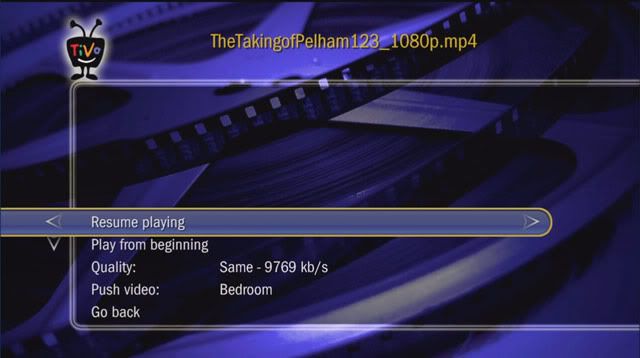
Here's the kind of thing you'll see after you select a video in pyTivoX's StreamBaby interface on your TiVo:


This particular video has already started to play, so the top menu item says "Resume playing"; otherwise, it would simply say "Play." The second menu item from the top lets you snap right back to the beginning of the movie if you've already started playing it. If you haven't started playing the video, this item is not present in the menu at all.

"Quality" refers to the average bitrate of the video: the average amount of data per second that will be streamed to the TiVo. Here, "Same - 9769 kb/s" indicates that the size of the video file divided by its running time — its average bitrate — comes to 9,760 kilobytes per second. That's the average bitrate, not the peak, and the fact that the average bitrate is pretty high (anything over, say, 5,000 kb/s is quite high) suggests that occasional bitrate peaks might overload your local network's data delivery speed, causing playback to pause — and, unfortunately, to do so repeatedly. Whenever the playback pauses, you'll have to hit Play on the TiVo remote to get it to start again. You should wait and hit Play after you think there has been enough newly received data buffered on the TiVo to avoid another playback pause any time soon.

If you get tired of hitting Play after endlessly repeated pauses, you can change the StreamBaby Quality to any of several lower bitrates. StreamBaby will, via its self-contained copy of FFmpeg, do things like (I am guessing) drop every third video frame to reduce the peak bitrate to an acceptable level. That will ideally keep you from having to hit Play over and over and over on your TiVo remote, but it can cause playback to present more "strobing" to your eyes than they might appreciate. Strobing can make the playback seem blurry in fast-motion scenes.

The next menu item is interesting. "Push video:" tells StreamBaby to cause the Bedroom TiVo — in this example; you can select among all the TiVos in your house — to summon the entire video file. It will be transferred in its entirely to the Bedroom TiVo's hard drive, and it will then appear the Bedroom TiVo's Now Playing list, allowing it to be played like any other video recording. The benefits:

  1. You can push videos in the MPEG-4 h.264 (or AVC) format that plain old TiVo Transfer on your computer wouldn't let you transfer. These files as computer files usually have an .m4v or .mp4 extension, not the .TiVo or .mpg extensions associated with MPEG-2 files that TiVo Transfer can handle. (The movies and TV Shows in your iTunes library usually have an .m4v extension, by the way.) There's a catch, though. Videos you purchase from the iTunes Store are encrypted and need to be independently decrypted before the TiVo can play them at all. It's beyond the scope of my article to say how to do that.
  2. You can also push and watch unencrypted videos in the familiar (if now outmoded) WMV format.
  3. Pushing a video allows you to (after a sufficient amount of the file has been received and stored) play the video from your TiVo's Now Playing list without encountering irritating pauses or having to throttle down the bitrate to avoid them.

What's the difference between "pushing" and "streaming," again? With "pushing" you wind up with a copy of the original file in your TiVo's Now Playing list. With "streaming," you simply play the video without making a copy on the TiVo.

Both of these options come from the StreamBaby interface on the TiVo, while a third option, "pulling" a copy of the video to the TiVo, comes from the pyTivoX interface proper. The pyTivoX interface is initiated directly from your TiVo's Now Playing list.

"Pulling" the video over to the TiVo has the advantage of having pyTivoX "transcode" the video into a different format en route to the TiVo, and that may be necessary to do if for some reason the video file as it resides on your computer cannot be played "natively" on the TiVo.

So if you try "streaming" the video and it looks terrible or won't play at all, try "pulling" it instead. Go to the Now Playing list on the TiVo and scroll down until you see the name of any of your "share" folders. For example, in the earlier screenshot image "Rob's PC" is the name of a share folder. When selected on the TiVo, it opens up to show all of the video files it contains ... and also any subfolders. You can drill down through the subfolders to find the video you want. Select that video and then select "Transfer this recording." In a matter of seconds it will start to transfer. The blue LED will come on on the front of the TiVo, and you will be asked whether you want to start watching the video while the transfer is ongoing.

If you do start to watch, you may quickly find that playback pauses because the rate of transfer cannot keep up with the rate of playback. After a while, you hit the play button, see some more of the video ... and get another"hard pause." Let the transfer proceed for a while. Then resume play. You may find  at that point that enough of the video has been transferred to keep playback from pausing henceforth.

Or you may not. If not, just do something else for a while. When you come back to the video, you'll most likely find it at the top of your Now Playing list, and if the transfer is not yet complete, you'll see the "blue button" icon next to it. You can initiate playback now just as you would any other recording in the Now Playing list.


So, those are the basics of the pyTivoX/StreamBaby/FFmpeg package for the Mac. Using it, you can watch any video file that sits on your computer — well, any video file that is in a format pyTivoX/StreamBaby/FFmpeg understands — on your TV, via your TiVo. Enjoy!

Monday, April 05, 2010

Stream, Baby, Stream

Run StreamBaby and it will stream video recordings from your computer to your TiVo. You fire StreamBaby up on your computer and let it sit there "listening" for the TiVo to command it to play a video. You go to your TiVo and from there select which video recording to play. Almost instantly, StreamBaby starts to stream the video through your TiVo into your TV.

It is a bit like TiVo multi-room viewing, which allows one TiVo in your house to feed a video to a different TiVo in a different room. With MRV you can begin watching the video in the other room as soon as the stream has started to transfer; in that way StreamBaby is basically like MRV with, as a source device, a PC or Mac, not another TiVo.

But StreamBaby is better than MRV. With MRV, if the bitrate of the program exceeds the speed of your network, you get a "hard pause" — one that will not automatically go back to playing the video after more of it has been streamed. You wait a bit, hit play, and pretty soon there's another hard pause. You manually go through the play-pause-play dance over and over and over again. Not wonderful.

StreamBaby will do the manual play-pause-play dance if you want it to, but it also gives you the option of throttling the bitrate down so that the video will play all the way through without interruption. That is wonderful.

And StreamBaby plays videos in a number of formats that the TiVo ordinarily can't deal with. For example, if on your computer you have a video in the MPEG-4/h.264/AVC format with the file extension .m4v, the TiVo ordinarily won't play it. StreamBaby plays it. StreamBaby plays .wmv, .avi, and .mkv videos too.

StreamBaby will swiftly seek to anywhere in the video, and play the video from that point in time. MRV won't. And StreamBaby will also fast forward/rewind to any point in the video, with low-quality static images appearing on the screen as a preview. (Unfortunately, videos in the .mpg, or MPEG-2, format don't present those static "thumbnail" images readily the first time they are played, until the static thumbnails are all cached for later use. That takes about five minutes for a two-hour movie. The cache is saved for the next time the video is played, however.)

StreamBaby lets you punch in, from the number pad on your TiVo remote, a sequence of digits, and then it will seek to that minute in the video. For example, if you punch in 1-8, minute 18 of the video will come up on your TV screen. Again, that's not something MRV can do.

StreamBaby responds to other key presses on the TiVo remote. For instance, if you use the FF or REW button and then the skip-forward or skip-back button, StreamBaby will jump forward or back in 15-minute increments.

StreamBaby remembers your position in a video when you stop watching and automatically starts at that position next time you watch. If you have more than one TiVo, it will do that even if you are using a different TiVo when you return to watching the video. Nice.

And the thing that really sells this hard-of-hearing guy on StreamBaby is that it puts subtitles on the screen along with the video. You have to go to a bit of trouble to turn the closed captions embedded in the video itself into subtitles, or to otherwise obtain the subtitles file, but once you do that, StreamBaby shows them.


StreamBaby First Use

After I wrote this, I learned about a much easier way to begin using StreamBaby — see Viva pyTivo!


StreamBaby runs under Windows, under Mac OS X, and also on Linux-based platforms. I'm using it on a Mac. According to the StreamBaby project website, getting started with StreamBaby is relatively easy under Windows. However, on a Mac there are complications. I'll detail some of them here.

(1) First, download the StreamBaby ZIP file from the website. At the time of this writing, it's the 0.29 version of StreamBaby, available here. But check the website to make sure that there isn't a later version for you to download.

(2) Unzip the ZIP file to get a folder called streambaby-0.29 (or whatever). You can put the folder wherever you want; I keep mine on my Desktop. In that folder, you're looking for the Unix executable named, appropriately, streambaby; it will run in Terminal. You're also looking for a crucial initialization file, streambaby.ini. Save a copy of the latter in its original form if you like, because you're going to  modify the original to (among other things) point to the folders that contain the videos you want to stream.

(3) Edit the original streambaby.ini file in TextEdit (drag the streambaby.ini icon to TextEdit on the Dock) to include the path to the top level of your video folder hierarchy. Here's mine:

dir.1=/Volumes/New 2TB Drive/TiVo Transfers
dir.1.name=TiVo Transfers

Notice that I also told StreamBaby by what name it should call my top-level folder. That's optional. If you don't specify your own dir.1.name, the default one that comes in the .ini file is "My Videos." The dir.1.name, whatever it is, will show up on your TV screen later on.

Notice also that there are embedded spaces in the dir.1 path name to my "TiVo Transfers" folder, and also in the dir.1.name. They're fine. You don't have to put an "escape" character ('\', a backslash) in front of the spaces. In fact, the streambaby.ini file won't work right if you do.

If you have no videos to stream using StreamBaby, then for the time being you will need to create (anywhere you like) an empty folder for this step.

But how do you ascertain the full path name to your videos folder? Download Copy Path.workflow.zip to your Desktop as a file named Copy Path (its extension, .workflow, is hidden), and then move or copy that file to become /Users/[username]/Library/Workflows/Applications/Finder/Copy Path.workflow. Substitute your own username for [username]. It then becomes a Finder plugin. To use it, select any folder or file in Finder, right-click on its icon, and choose More -> Automator -> Copy Path. Wait a few seconds for the plugin to do its work. The full path name is now on your Clipboard and, in TextEdit, you can paste it into streambaby.ini as dir.1!

In the streambaby.ini file, any line that begins with a '#" character is a comment. It has no effect. There are several of these in the original file to give you and idea of the kinds of things you can put in the file. (To find out all the things that can go in the file, click here.)

The active streambaby.ini file has to be in the same folder as the streambaby Unix executable.

(4) Your mileage may vary on this one. I found I had to put


ip=10.0.1.201


in my streambaby.ini file to get StreamBaby to work for me. 10.0.1.201 is the IP address of my iMac, set in Network Preferences. In that Preferences panel I've set my Built-in Ethernet connection (I'm using that connection and not AirPort) to "Configure: Using DHCP with manual address" and have entered 10.0.1.201 as my IP address. My iMac connects via an Ethernet cable to my AirPort Extreme base station (which is basically a wireless access point/router/Ethernet hub) and I run another Ethernet cable from the base station to my TiVo Series3. StreamBaby works for me only if I include the above line in my streambaby.ini file. If you try StreamBaby (see below) and find its "Stream, Baby, Stream" menu item won't show up on your TiVo, you might try looking at Network Preferences to find out your Mac's current IP address and entering it as a line like the one above in your streambaby.ini.

Don't forget to save your modified streambaby.ini file before you try to use StreamBaby. If you have already started StreamBaby on your Mac, you should quit it, modify streambaby.ini as desired, save the modified streambaby.ini, and restart StreamBaby from the Terminal window again. See below for more on how to do all that.

(5) This next part is a bit complicated. Bear with me. To get certain parts of StreamBaby's functionality to work, you have to install FFmpeg on your Mac. That's not easy, but doable.

First, download this ffmpeg.zip file to your Desktop. Then unzip it to put a folder called ffmpeg on the Desktop.

You are going to copy the ffmpeg.bin file within that folder to the /usr/bin/ directory, and then you will copy all five of the other files (the ones with the .dylib extension) to /usr/lib/. To do those things, you need to open a window in Terminal and enter

defaults write com.apple.finder AppleShowAllFiles TRUE; killall Finder;

followed by hitting return. Copy and paste the above to avoid typing errors.

That will cause hidden files and directories to show up in Finder. Next, navigate to /usr/bin/. /usr/ is at the top folder level on your main hard drive. /bin/ is one of the items at the top folder level within /usr/. Holding down the option key to make a copy, not move the original file, you need to drag ffmpeg.bin from the ffmpeg folder to /usr/bin/.

Then go back out to the /usr/ directory and open its /lib/ subfolder.  Option-drag all five of the .dylib files from the ffmpeg folder into that subfolder.

Now go back to the Terminal window and enter (via copy and paste):

defaults write com.apple.finder AppleShowAllFiles FALSE; killall Finder;

That will restore all hidden files to being hidden in Finder. Congratulations, you have just installed FFmpeg along with its five dynamic libraries!

(6) You're almost ready to try StreamBaby, but before you do, you'll need a video to try it out with. In Pt. 2 of this series I'll tell you how to create your own videos from recordings on your TiVo — you'll use your computer as an archive for them, plus decrypt them so they will stream in StreamBaby.

For now, you'll just download NxNW Clip.zip and unzip it to your Desktop. Then you'll edit


dir.2=/Users/[username]/Desktop/NxNW Clip
dir.2.name=NxNW Clip

into the streambaby.ini file, replacing [username] with your username. (Use the "Copy Path" Finder plugin mentioned earlier to simplify the whole thing.) Notice that this time, dir.2 and dir.2.name are used; this is your second StreamBaby folder. You specified the first one earlier, even if you had to create an empty folder somewhere to do it.

(7) Now that you have something to stream, it's time to fire up StreamBaby:
  • Open a Finder window for your streambaby-0.29 (or whatever) folder
  • Launch the Terminal application (it's a good idea to keep Terminal in your Dock); open a new window in Terminal, if none opens automatically
  • Drag the streambaby Unix executable file to the Terminal window and hit return
  • Expect to see something like 04/05/10 16:56:22 Listener: added factory and then 04/05/10 16:56:22 Main: streambaby ready & listening in the Terminal window, while ...
  • com.unwiredappeal.tivo.streambaby.StreamBabyMain opens as a separate application on your Mac; it's a Java app, and if it can't open properly, check that Java 1.5 or above is installed on your Mac; retry the above after you have obtained the latest release of Java for the Mac
StreamBaby is now running, so it's time for the acid test.

Go to your TiVo and from the TiVo Central menu choose Music, Photos, & Showcases. That will (after a couple of seconds of hesitation) bring up a list of items you can play, near the bottom of which (scroll down if necessary) is Stream, Baby, Stream.


If you don't see it, check near the bottom of the list for Enable Home Network Applications ... . If you see that, select it and comply with the instructions: hit the Thumbs Up button on your remote three times, then hit Enter. After you navigate back to the bottom of the Music, Photos, & Showcases menu, you should now see Disable Home Network Applications ... , just as in the picture above.

Or, if you see the "Disable" option already, you have a more serious problem. One possibility is that StreamBaby is using an IP address that the TiVo is blind to (see above for how you specify an IP address in streambaby.ini). You do have your TiVo on a wired or wireless network with you Mac, correct?

If so, then sorry, but solving problems like that is beyond the scope of this article. To get further advice, visit this thread at the TiVo Community Forum.

Once you do see Stream, Baby, Stream on your TiVo, select it. You should see a NxNW Clip screen with one item in its menu: NxNW Clip. Select that, and you should see NxNW 1 min.mpg. Select that, and you'll see a Play button, along with some others. Select Play. You will probably see a "Please Wait ..." icon and also some subtitles that begin playing even though there's no picture yet. After a few seconds, the picture and audio should snap in, and the subtitles will sync up with it.

The subtitles come from the NxNW 1 min.srt file in the same folder as NxNW 1 min.mpg, by the way. They were extracted from the closed captions in the original TiVo recording. In a later post, I'll tell you how I did it ...

Meanwhile, congratulations! You are just about ready to Stream, Baby, Stream ...
Thursday, November 26, 2009

Amazon VOD Rentals

In Amazon's Video On Demand I talked about buying videos from Amazon's VOD store. You can also rent many titles. As this is written, there are 17,327 rental titles and 23,459 titles that can be purchased.

Many of the rentals and to-buy titles are the same. For example, Borat, the 2006 Sacha Baron Cohen hit, costs $2.99 to rent, $5.49 to buy:


When you buy a TV show or movie, it goes permanently into your video library at Amazon.com:


But when you rent, the title is only temporarily in your library until it is downloaded to a device you own that can play it. After the download, you have 30 days to begin playing it on that device. Once you begin watching it, you have 24 hours to finish. When the 24 hours are up, the downloaded copy goes poof.

You can also play the rental on your computer, right in your web browser. Again, you have 24 hours to finish before it vanishes forever.

Here's me renting The Phantom of the Opera (2004). First, I search for "phantom of the opera" at the Amazon VOD store and get:


I click on "The Phantom of the Opera (Rental — 2009)" and see:


(I still have the option to buy the video, as you can see.) At this point I need to already have an Amazon.com account with a credit card or other default payment method on file, and 1-Click ordering enabled. After I click on "24 hour rental with 1-Click $2.99," after a few seconds during which Amazon is processing my order, I see:


I opt to click on the "Your Video Library" link at this point, to see:


Notice that this entry is truly a phantom. Come Dec. 26 at 4:01 PM, if I haven't watched it, it will vanish!

Going back to the "Thank you for your purchase" panel: it gives the options to "Watch Now," "Watch Later," or "Download." You should choose one of these very, very carefully, bearing in mind that "Once you download or start to watch this rental you can't change your viewing choice." That means your choice of a device such as a TiVo to download the rental to is irrevocable. You can't change your mind later and move it to a different device, or decide to play the rental instead in your browser window.

Likewise, if you start playing the rental in your browser, you can't change your mind and download it to your TiVo.

"Watch Now" is what you click to play the rental right in your browser window. "Watch Later" does nothing except leave the rental sitting in Your Video Library, awaiting further disposition. "Download" is the way to initiate a download to your TiVo or other device compatible with Amazon VOD. For purposes of this example, I'll click "Download."

Before I click it, I need to make sure the download is going to go to the right device, so I need to make a selection from the download device drop-down menu:


In this menu I see my two TiVo units, "Living Room TiVo" and "Bedroom," and one Windows computer, "Clone of winxp," running Amazon's Unbox viewer in Windows. (The Unbox software won't run on a Mac.) I want to send my download to my "Living Room TiVo," so I select that, click "Download," and see:


At this point the download has begun. My TiVo box shows a blue LED on its front panel, and if I look in its Now Playing list, I see "The Phantom of the Opera" with a simulated blue LED next to it. The same item appears (redundantly) in the folder representing my "Amazon Video On Demand" group.

I can begin playing the video almost immediately, thanks to the fact that this is a "progressive" download that does not require me to twiddle my thumbs until the whole video has been downloaded.

(If at this juncture I look, in my computer browser, again at my Amazon "Your Video Library," I note that "The Phantom of the Opera" has disappeared from it. Once the rental has begun downloading, that's it: it's no longer in the library.)

Getting back to my Living Room TiVo: whenever I begin playing the rental, before it actually starts I have to wade through a warning to the effect that I'll have just 24 hours to finish watching. When I confirm that starting the 24-hour clock ticking is what I truly intend to do, the video starts playing, just like any other video I have on the TiVo.

If I like, I can temporarily stop playing it — planning to come back to it later — whereupon it acquires a flashing red flag next to its entry in the Now Playing list. This is a warning that at a time 24 hours from when I began watching the rental, it will cease to exist — even if I haven't finished watching it! And sure enough, exactly 24 hours after I first hit Play, the downloaded file disappears from the TiVo.